
How to schedule WhatsApp group messages
Quick Answer
To schedule WhatsApp group messages with SendOnTime, link the WhatsApp account you use in the group, select that group, prepare your message and choose a send date and time. Review the destination before confirming. The linked account must have permission to post in the group and remain connected to SendOnTime when the schedule runs.
Group readiness
Before you schedule a group message
Open the intended group in WhatsApp and check that you are still a member. Make sure you are checking the same account you will link to SendOnTime, especially if you use separate personal and work numbers.
Check whether that account can send messages in the group. An administrator can allow all members to post or restrict posting to admins. If the group is restricted, your linked account needs the corresponding permission. WhatsApp explains these controls in its group message settings guide.
Identify the conversation by its full name and context. A team may have separate groups for planning and announcements, with similar names but different audiences. Decide which group needs this update before opening the scheduler.
Prepare information that will still be correct when the message goes out. For a meeting reminder, check the meeting time and any link in the text. Group members should be able to understand the update without reconstructing an earlier conversation.
Step-by-step setup
Schedule a message to your WhatsApp group
Follow one message through the setup first. The example below is an illustrative team meeting reminder for a single existing group. Use your own group and meeting details when creating the schedule.
1. Link the WhatsApp account you use in the group
Connect your account through the WhatsApp linking flow in SendOnTime. Complete the phone-side steps and check that the intended account is connected before creating the message.
Return to the dashboard and select Schedule Message. The sender matters as much as the destination: a group available to your work number may not be available to your personal number. If the group is missing later, check this account choice before changing the message.
2. Select the intended group
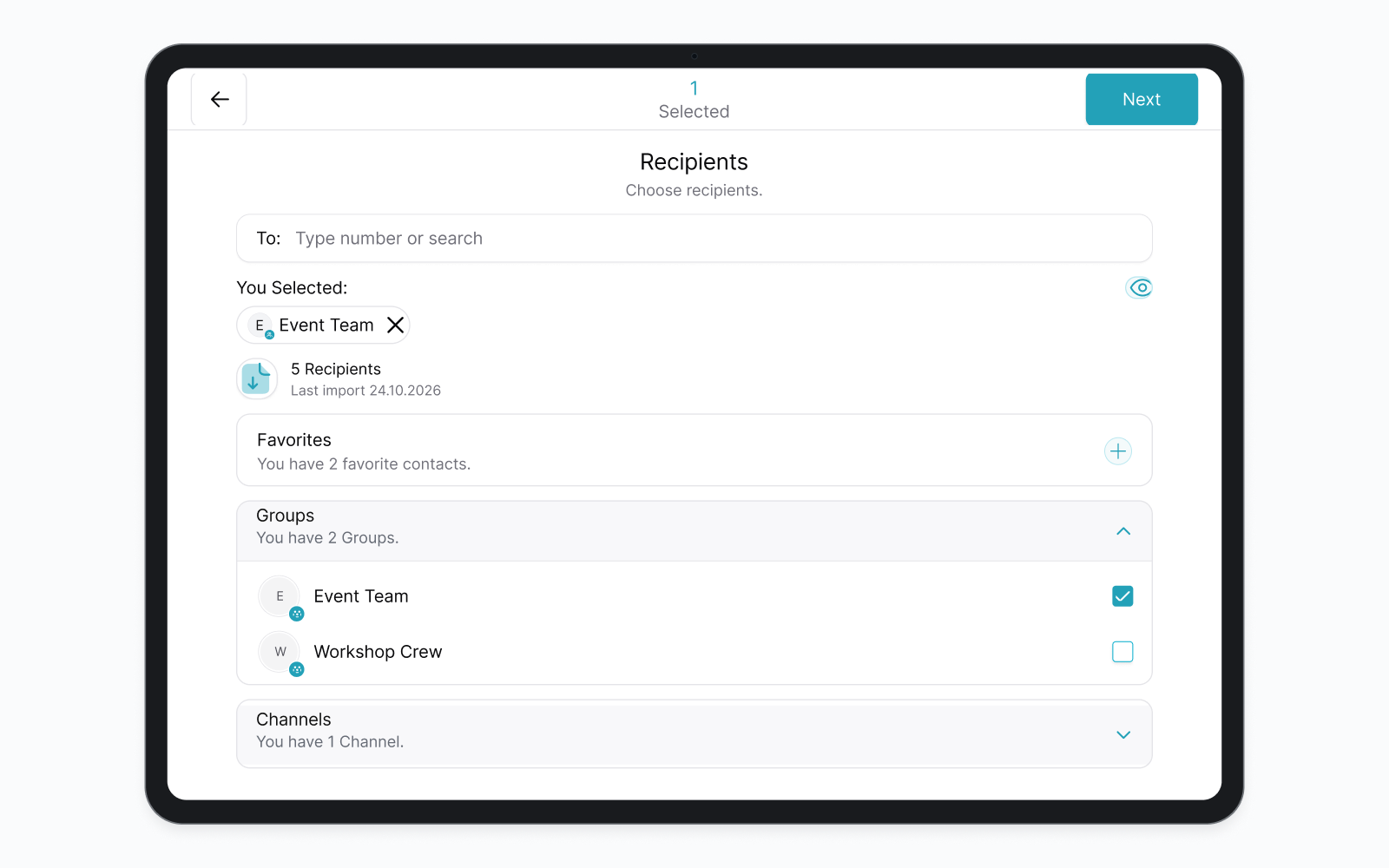
On Recipients, open the available group list and choose the group that should receive the update. Use the group name to identify the destination, then review its selected chip under You Selected.
For this first schedule, keep only the intended group selected. Remove any contact or other destination carried into the selection accidentally. Posting to a group places the message in that shared conversation; selecting an individual contact creates a different destination.
Check the selection before choosing Next. If two groups have similar names, compare them with the conversations in WhatsApp before continuing. A correct message sent to the wrong group can expose information to an unintended audience.
Stop animationPlay animation
3. Prepare the message for that group
Write the message in the composer. A short text is enough for the first schedule. For example, if the reminder will go out the afternoon before a team meeting, the message could say:
Reminder: our team meeting is tomorrow at 10:00. Please add your updates to the shared agenda before the meeting.
The word "tomorrow" depends on the send date. If you move the schedule to another day, review the wording too. Include a meeting link or attachment only when the group needs it, and check that the people in that group can access the shared material.
Preview the finished content before moving on. Check names, spelling and any instructions that refer to a particular date or earlier update.
4. Choose the send date and time
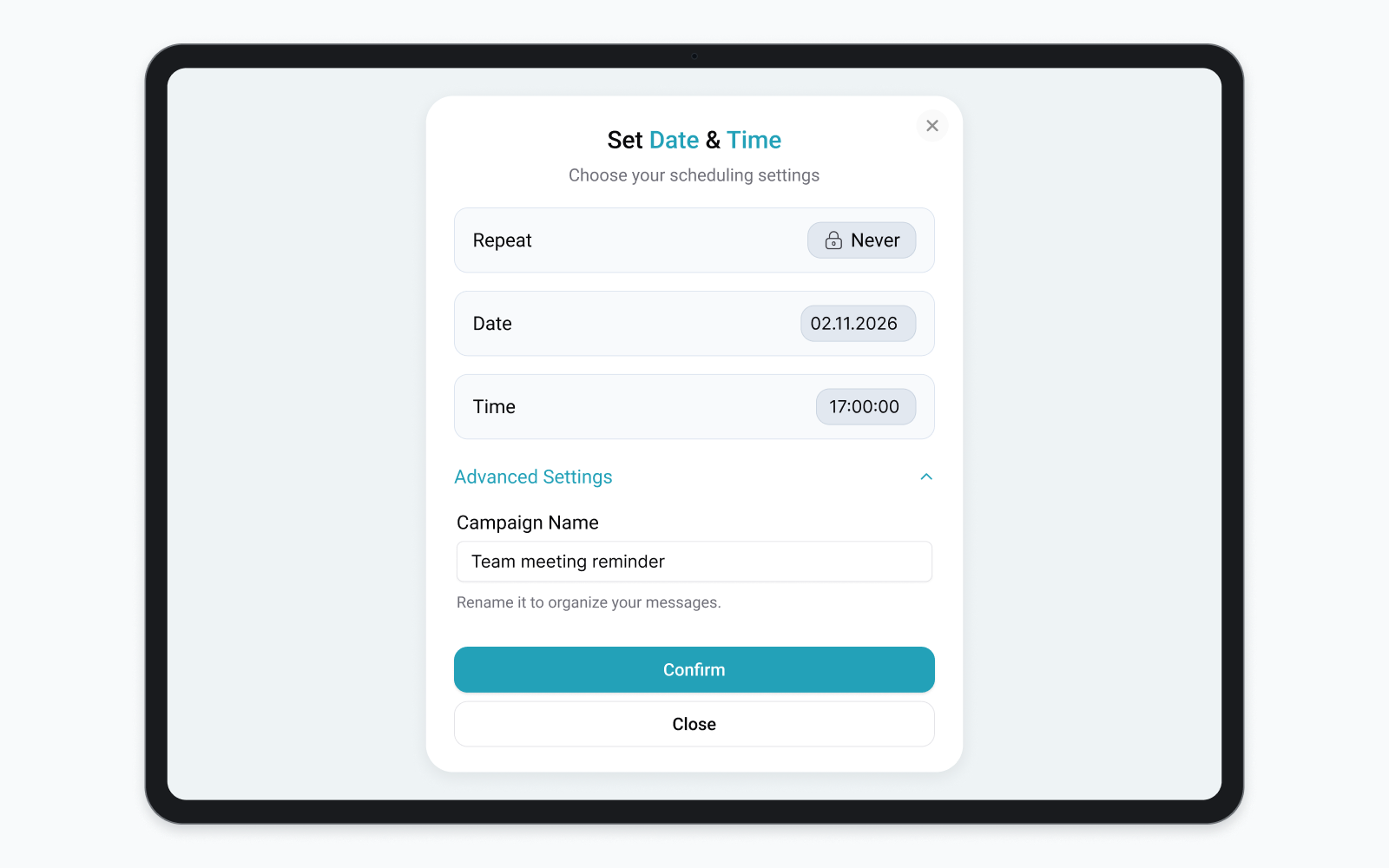
Open Set Date & Time. For a one-time group message, choose Never in Repeat, then select the intended Date and Time.
Check the timezone shown in your account or scheduling context before relying on the selected time. If your team works across locations, convert the intended send time into that timezone. Do not assume that a time written in the message and the scheduler's time refer to the same location.
For the example reminder, choose the afternoon before the meeting. Check that the meeting itself still takes place the following morning. Scheduling the reminder and writing the event time are two separate parts of the review.
5. Review the group and confirm the schedule
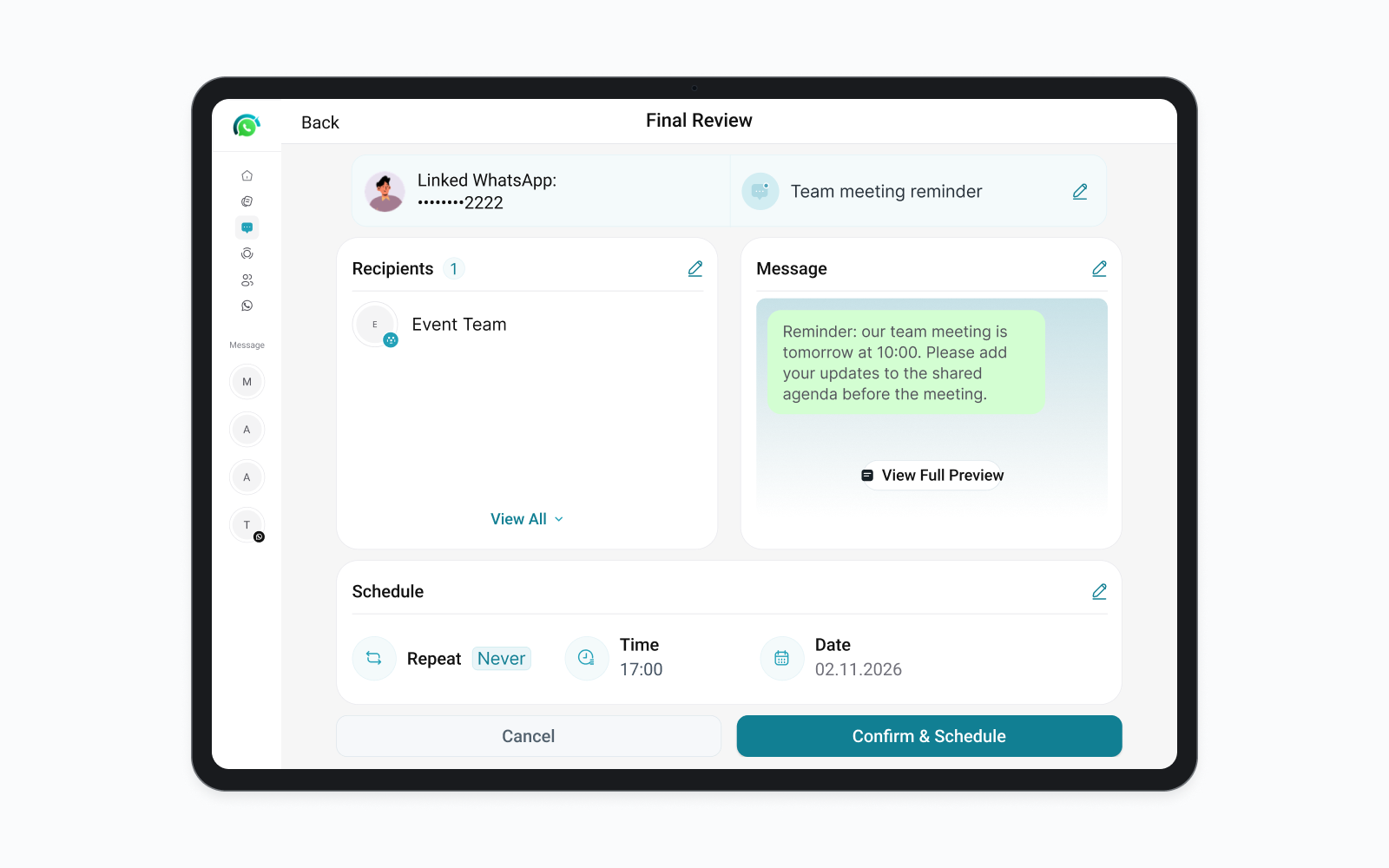
In Final Review, check the linked WhatsApp account, selected recipient and complete message. Confirm that the recipient is the intended group and that no private contacts were selected alongside it unintentionally.
Review the schedule as well: the selected date and time should match your plan, and the repeat setting should match a one-time send. Read the message alongside those settings so relative wording such as "tomorrow" remains accurate.
When the details are correct, select Confirm & Schedule. Check the creation confirmation, then find the saved record in Overview. Keep the linked WhatsApp account connected when the scheduled send is due.
Repeating updates
Set up a recurring group message
A recurring schedule can suit a group update whose wording stays useful, such as a reminder to add items to a weekly agenda. Choose the repeat pattern and review the dates and time for the intended run.
Each campaign reuses one base message. If the agenda, meeting link or instructions change, review the message before future sends or prepare separate schedules for different updates. Give the series an appropriate end date instead of letting an outdated reminder continue. For the full setup, follow how to schedule recurring WhatsApp messages.
After scheduling
Check the scheduled message and send result
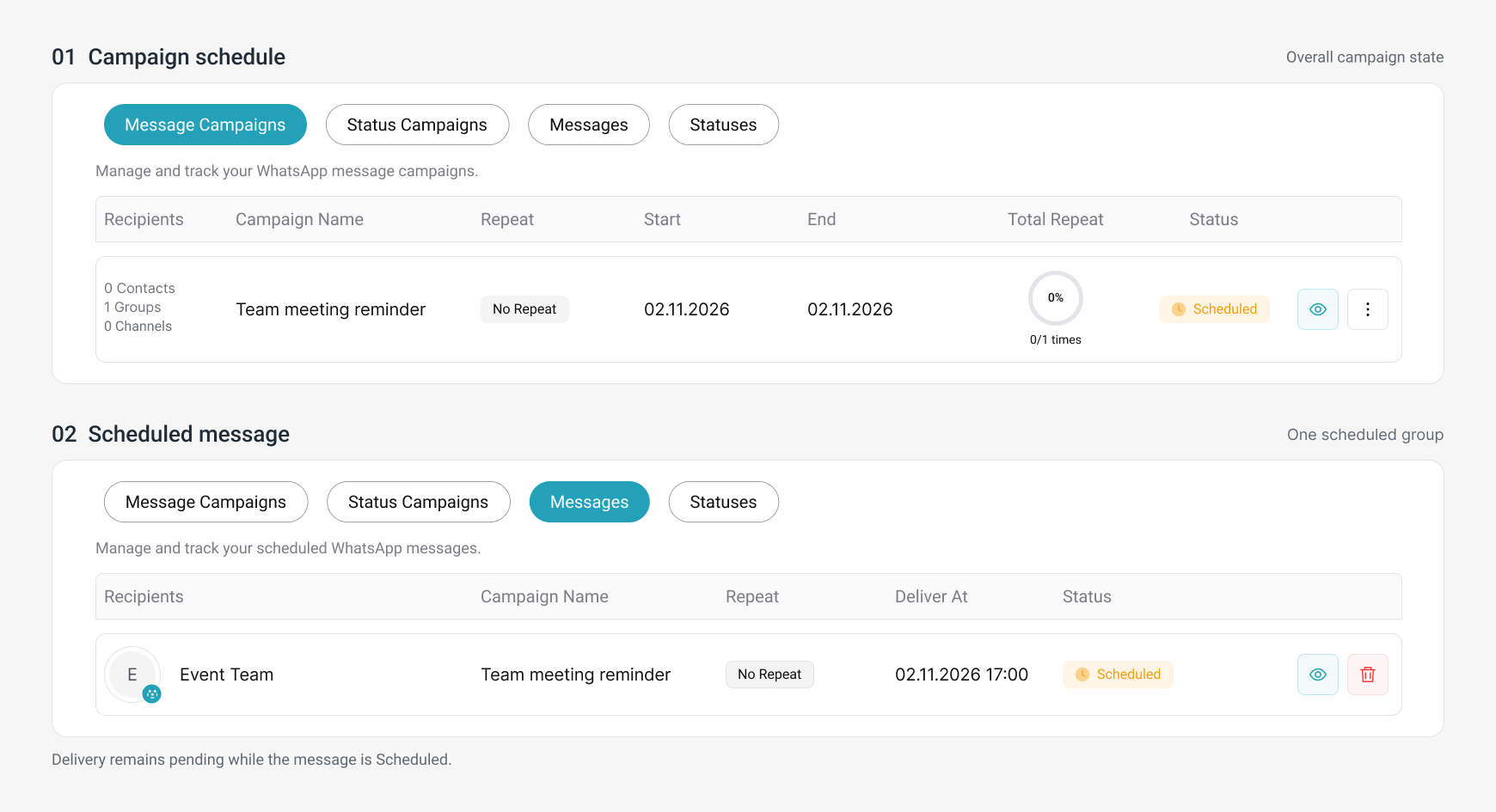
Open Overview and find the campaign. The Message Campaign view describes the overall schedule, including its repeat window and campaign state. Check that the saved destination and timing match the group update you intended to create.
After the scheduled time, open Messages to inspect the individual record for that group and occurrence. Use the campaign name, recipient and delivery time together to find the right entry. A campaign's progress alone does not establish the outcome of every send.
Review the displayed result before arranging a replacement. SendOnTime's reports describe the sending record; they do not show whether group members read the message. A replacement should reflect what actually happened to the original and whether the update is still useful.
Group troubleshooting
If your group is missing or you cannot send
Start with the point where the problem appears. A missing group during selection and an individual message showing a failure after its scheduled time need different checks.
- If the group is missing, check the linked WhatsApp number and confirm that this account still belongs to the intended group. Review the conversation in WhatsApp before selecting a different destination.
- If posting is restricted, check the group's current permissions. Ask an administrator to confirm your account's posting access when only admins can send. Recheck permission if the group's settings change after you prepare the schedule.
- If a send fails, inspect its individual message record and the account connection. A send due while the linked account is disconnected is marked Failed and is not retried automatically. After reconnecting, review the original record and the message's relevance before creating a new schedule.
Published:
Last updated: