
How to Schedule Recurring WhatsApp Messages
Quick answer
To repeat WhatsApp messages with SendOnTime, create a Message campaign, write one base message, choose its recipients, and set a daily, weekly, or monthly schedule. A campaign can target one or more people, multiple WhatsApp groups, multiple WhatsApp channels, or a mixture, with up to 100 recipients combined. Each group or channel counts as one recipient. Channel scheduling requires an eligible plan and permission to post. Review the dates before confirming, then check results for each recipient and scheduled run.
A recurring reminder often needs to reach people in different places. Two coordinators may need a private message, while teams use group chats and subscribers follow a channel. Planning those destinations together helps you check whether the same message and timing suit everyone. The example below follows five destinations over three days.
Recipient selection
Choose Who Gets Each Recurring Message
Choose recipients according to where they expect the update. You can build a campaign for a single contact, several contacts, multiple groups, multiple channels, or a combination of these. There is no requirement to include every destination type. A weekly reminder for one person can use the same scheduling approach as an update shared across several teams.
Check both the destination name and its type when selecting recipients. Similar names can belong to a contact, a group, or a channel. For a channel, confirm that your plan includes channel scheduling and that your linked account has the required owner or admin access. A message sent to a channel becomes a channel post; it does not create a separate private message to every follower.
Agree on a useful frequency with the people receiving the message. Someone who needs a weekly update may not want a daily reminder, and a group member may also receive the same update privately. Review that overlap before including both destinations.
Follow the WhatsApp messaging guidelines, including the restrictions on spam and repeated unwanted contact.
Count Contacts, Groups, and Channels Together
The 100-recipient limit is shared across all destination types in one campaign. Count each selected contact, group, and channel once. The number of members in a group or followers in a channel does not increase this selection count.
| Destination type | Selected destinations | Count toward the limit |
|---|---|---|
| Individual contacts | 90 | 90 |
| WhatsApp groups | 6 | 6 |
| WhatsApp channels | 4 | 4 |
| Total | 100 | 100 |
This selection leaves no room for another recipient in that campaign. The cap applies to each scheduled run. Repeating a campaign on several dates increases its total planned sends while each run remains limited to 100 selected recipients.
Campaign setup
Build the Message and Its Repeat Schedule
Each Message campaign contains one base message. Write wording that will make sense to every selected destination each time the campaign runs.
- Create a Message campaign in SendOnTime and confirm that it uses your intended linked WhatsApp account.
- Give the campaign a name you can recognize in reports, such as “Event coordination, November 2 to 4.”
- Write the base message and select the contacts, groups, or channels that should receive it.
- Set the repeat pattern, date range, and time, then review the resulting schedule before confirming.
Match the Repeat Pattern to the Task
Select the repeat pattern from the job the message needs to do. Daily runs once per day at the chosen time. Weekly and monthly schedules suit updates that become useful less often.
| Pattern | Example purpose | What to review |
|---|---|---|
| Daily | A reminder during a short event | Start date, end date, and daily time |
| Weekly | A recurring team check-in | Selected weekday and the next scheduled dates |
| Monthly | A regular administrative reminder | Selected day and the dates in upcoming months |
To send daily WhatsApp messages for a temporary task, keep the date range tied to that task. Check the dates shown by the scheduler, especially when a monthly choice falls near the end of a month. If some recipients need different wording or a different frequency, plan their messages separately so each campaign has a clear purpose.
Work Through a Three-Day Mixed-Recipient Campaign
Suppose you are coordinating a three-day event. Two coordinators need private reminders, two working groups need the same update, and one event channel carries announcements. You have the required channel access. Select those five destinations and use a base message that is suitable for all of them:
Event reminder: please review the event notice for current times and locations. Coordinators and team members, confirm any outstanding arrangements with your team lead by 18:00.
Choose Daily and set the intended date range to 2026-11-02 through 2026-11-04, with a send time of 17:00 in your intended scheduling timezone. Check that the schedule shows these three runs:
| Date | Intended time | Selected recipients | Planned sends |
|---|---|---|---|
| 2026-11-02 | 17:00 | 5 | 5 |
| 2026-11-03 | 17:00 | 5 | 5 |
| 2026-11-04 | 17:00 | 5 | 5 |
| Total | Three runs | 5 per run | 15 |
The plan contains 15 recipient-sends: five destinations multiplied by three runs. Those are planned sends, not verified deliveries. Group membership and channel follower counts are outside this calculation. Confirm that the event notice is accessible to contacts, group members, and channel followers before scheduling.
Final review
Review the Recipients, Dates, and First Send
Compare the final campaign settings with your written plan before confirming. A recurrence setting alone does not tell you whether you selected the right audience or date range.
- Sender: confirm the intended WhatsApp account is linked and connected.
- Recipients: check names, destination types, channel access, and the combined count.
- Message: read it as a private recipient, a group member, and a channel follower where those types are included.
- First and last run: compare the actual scheduled dates with the intended start and finish.
- Timezone and time: verify which timezone the schedule uses and whether the time suits the audience.
- Run count: compare the expected number of occurrences with the schedule shown.
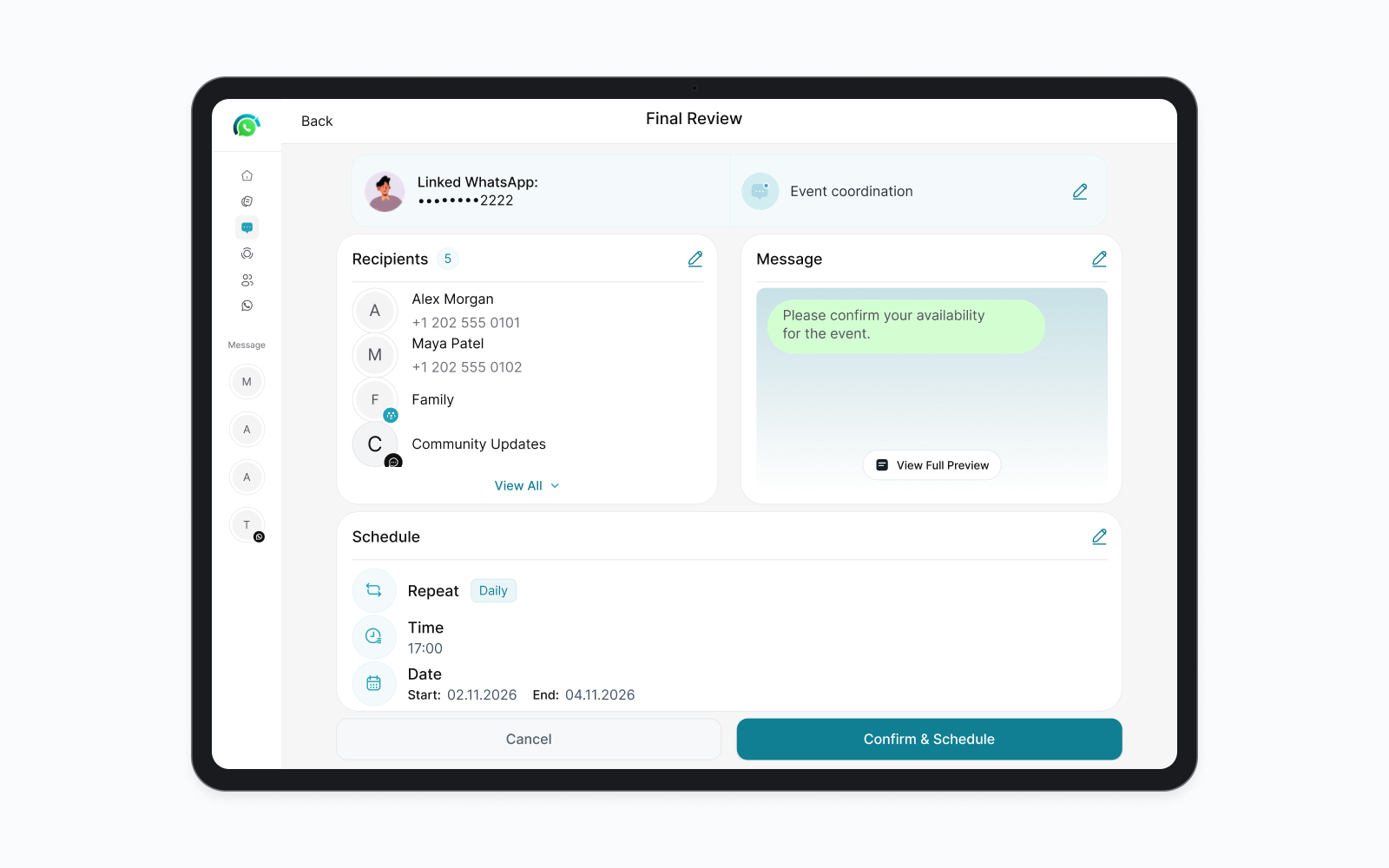
For the example, you should be able to account for three dates and five destinations on each date. Do not infer the final occurrence solely from the end-date field; inspect the resulting schedule. The chosen time is the planned send time, so allow for recipients receiving messages at different moments. After confirming, return to the saved campaign and check that its settings match the plan you reviewed.
Delivery checks
Check Results for Each Recipient Run
Use the campaign report to review the series and the individual message report to inspect a particular recipient and scheduled time. Saving a campaign confirms that you created a schedule; it does not establish that every planned message reached its destination.
| What you need to check | Report | Relevant fields |
|---|---|---|
| The overall campaign and its repeat settings | Campaign report | Campaign Name, Repeat, Start, End, Total Repeat, Status |
| A recipient's message for a particular run | Individual message report | Recipients, Campaign Name, Deliver At, Status |
After the first run, check each of the five destinations in the example. Match the recipient and scheduled time to the intended run, then read the recorded status. Continue checking later runs when their results are available. A report about sending or delivery does not by itself establish that a person read or acted on the message.
If one destination shows a failure or an unclear result, inspect that entry before arranging a replacement. Check whether the original is still pending and whether the other recipients already received their messages. Resending the whole campaign to solve one recipient's problem can repeat a message for everyone else. Record which recipient and date need attention so any follow-up stays specific.
Series control
Recheck the Series When Plans Change
Review the campaign when an event ends early, recipients change, or the wording stops being useful. Check the available action and its confirmation carefully before changing or ending the series.
- Does the action apply to the campaign or to a particular scheduled item?
- Which future dates and recipients will it affect?
- What does the confirmation say will happen to messages that are already scheduled?
After the action completes, inspect the remaining schedule and its status again. For the three-day example, check that no unintended run remains after the event's reminder period. If a replacement campaign is needed, compare its recipients and dates with the original to avoid overlapping reminders.
Published:
Last updated: