
How WhatsApp Scheduling Works After You Link a Device
Quick answer
SendOnTime sends scheduled WhatsApp messages from the cloud after you link your WhatsApp account and confirm a schedule. Your phone can be switched off, and you can close your browser once the schedule is saved. You do not need to keep your phone connected to the internet. Your linked WhatsApp account needs to remain connected to SendOnTime at the scheduled send time, so the service can send on your behalf.
Account access
Linking your account and scheduling a message do different jobs
Linking WhatsApp gives SendOnTime an authorized connection to the account you want to send from. A scheduled message uses that linked account, so the sending identity remains yours. Linking alone does not create a message, choose its recipient or decide when it should go out.
You supply those instructions when you create a schedule: who should receive the message, what it should contain, and the date and time for sending. Confirming the schedule gives SendOnTime a specific task to carry out later. The account connection and the saved instructions are separate parts of that task.
The browser you use to manage SendOnTime is separate from the linked WhatsApp connection used for sending. You can use the dashboard to prepare a schedule, then close it when you finish. SendOnTime uses the saved instructions and linked account for the scheduled send.
The process
What happens between saving a schedule and sending
How WhatsApp scheduling works depends on where the scheduled task runs. In SendOnTime, you use the dashboard to prepare it, and the service handles execution on its servers. The normal sequence is:
- Prepare the message. Choose the intended recipient and content, then select the date and time. These instructions define the message you want the service to send.
- Review and confirm. Check the recipient, message and timing before confirming the schedule. Text you are still composing does not establish that a schedule has been saved.
- Keep the schedule for later execution. Once confirmed, the schedule is held by SendOnTime for its due time. The service keeps the saved task ready, and you can close your browser.
- Execute through the linked account. At the scheduled time, SendOnTime's server carries out the sending task through your WhatsApp connection. That connection must be available then, even if your own device is offline.
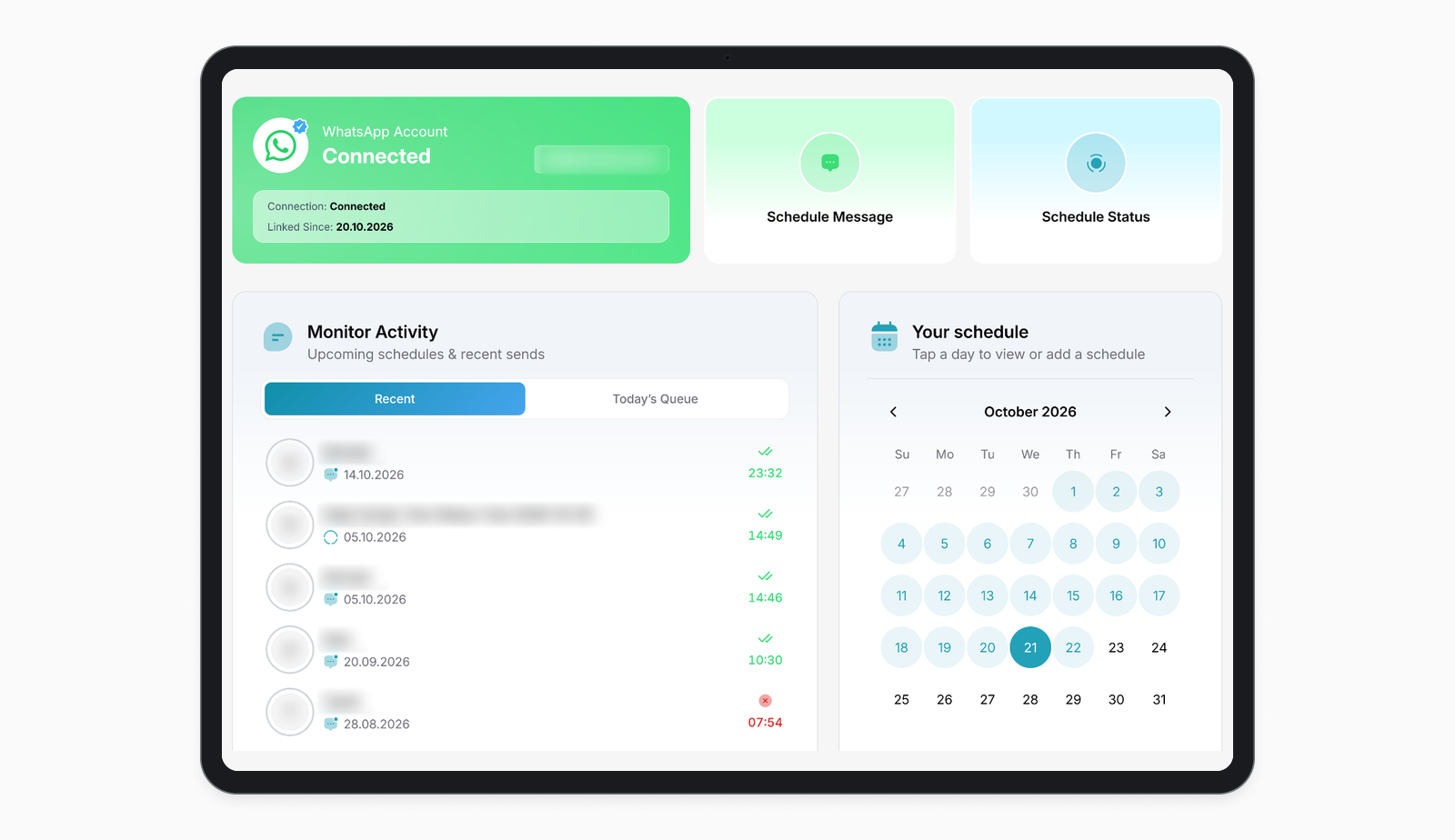
- Record the sending result. After the scheduled time, you can review the result in SendOnTime. The same dashboard used to arrange the message lets you check how the sending task finished.
You can prepare a message when it suits you and choose a later time for sending. Once the schedule is confirmed, SendOnTime handles that future task. Your dashboard is where you manage the instructions; it does not need to stay open while the service waits for the chosen time.
Device states
What changes when your phone or browser is offline
The useful distinction is between your local device and the WhatsApp account linked to SendOnTime. Switching off your phone or closing a browser does not, by itself, disconnect that linked account. You can leave your devices offline after saving a schedule; the account connection is what SendOnTime uses when it is time to send.
| State at the scheduled time | What changes | What SendOnTime does | What you need to do |
|---|---|---|---|
| Your browser is closed | The local dashboard is no longer open. | Runs the confirmed schedule through your linked WhatsApp account. | You can leave the browser closed. |
| Your phone is off or has no internet | Your primary phone is unavailable locally. | Sends from the cloud using the account already linked to SendOnTime. | You do not need to turn the phone on just for that send. |
| Your phone is off and your browser is closed | Both local devices are unavailable. | Uses the same cloud execution process. | Keep the WhatsApp account connected to SendOnTime. |
| The linked WhatsApp account is disconnected | The sending connection is unavailable. | Needs an active linked connection to send. | Review the connection status in SendOnTime; see the result section below. |
These three hypothetical situations show how the conditions affect an ordinary schedule.
You prepare a customer appointment reminder on your laptop, confirm it for tomorrow morning, and close the browser when you finish work. SendOnTime handles the saved task at its due time through your linked WhatsApp account. You do not need to leave the dashboard visible overnight. Before closing it, check that you have confirmed the intended recipient, message and time.
You schedule a birthday message in the evening, and your phone's battery runs out before the chosen morning send time. SendOnTime uses the schedule you already saved and the WhatsApp account linked to the service. You can charge your phone later; you do not need to have it running beside you for the scheduled send.
You prepare a client follow-up before a flight and confirm it for later in the day. During the flight, your laptop is shut and your phone is in flight mode. The confirmed schedule still runs in SendOnTime through the connected WhatsApp account. You can arrange the message before travelling and review its sending result when you next open your dashboard.
Ongoing access
Why your primary phone still matters
WhatsApp's linked-device guidance says linked devices can work without your primary phone being online. It also says linked devices are logged out if you do not use your primary phone for more than 14 days. Keep using WhatsApp on your primary phone as part of maintaining the account.
This is a maintenance requirement for WhatsApp's linked-device access. You do not need to leave your primary phone online for each scheduled send. Continue using WhatsApp on it normally, and keep the linked account connected to SendOnTime. That lets you use cloud scheduling without keeping your phone or browser open at the chosen sending time.
Sending record
Check the result of your scheduled send
After the scheduled time, you can return to SendOnTime to review the recorded sending result. This gives you a place to check the task you arranged earlier, even if your phone was off or your browser was closed when it ran.
If the linked WhatsApp account is disconnected at send time, the delivery is marked Failed and is not retried automatically. The connection status and requirements guide explains how to manage that connection.
A useful routine is to confirm the message and timing when you prepare a schedule, then review the sending result afterwards. SendOnTime handles the sending task between those two checks, so you can close the dashboard and get on with your day.
If you want to prepare messages ahead of time and have them run from the cloud while your linked WhatsApp account remains connected, explore the Message Scheduler. Review its supported recipients, content and scheduling options to decide whether it fits the messages you need to arrange.