
How to Schedule WhatsApp Channel Posts with SendOnTime
Quick Answer
To schedule a WhatsApp Channel post with SendOnTime, link the WhatsApp account that owns or administers the Channel, select the Channel in Message Scheduler, prepare the post, and set a future date and time. New Channel schedules require Enterprise. Review the details before confirming, then check the saved schedule in Overview.
Each scheduled Channel delivery publishes one post in that Channel. It does not send private messages to individual followers.
Requirements
Before you schedule a channel post
Check that the WhatsApp account you plan to link can publish in the intended Channel. You must own or administer it; following a Channel gives you access to its updates, but does not give you posting permission.
Creating a new Channel schedule also requires Enterprise. Review Enterprise Channel access before setting up the post if you are choosing a plan. Keep the account you use for scheduling and the account with Channel permission consistent throughout the process.
- Have the Channel name and the final wording ready.
- Choose the publication date and time, and check the timezone displayed in your account.
- Keep the linked WhatsApp session valid when the post is due.
For a first schedule, use a short text post. This keeps the destination and timing easy to review. If you later add media, check that the chosen content works for the Channel destination; support for a format elsewhere in WhatsApp does not establish support in this scheduling workflow.
Step by step
Schedule your WhatsApp Channel post
For example, a community organiser wants an announcement to appear at 17:00 ahead of an 18:00 session. The post will go to one Channel they manage. The same announcement, Channel and publication time should remain consistent from selection through Final Review.
-
1. Link your WhatsApp account
Link the WhatsApp account with owner or admin permission for the Channel. Check its connection in the dashboard before starting. If you manage more than one WhatsApp account outside SendOnTime, take a moment to confirm which one you have linked.
Select Schedule Message to open the message-creation flow. Channel posts use Message Scheduler, so you can follow the normal creation flow while choosing a Channel as the destination. For the detailed general setup, use Create & Schedule Messages.
-
2. Select the channel you manage
On Recipients, find the intended Channel in the available recipient lists. Select its entry, then inspect the destination shown under You Selected. Match the Channel name carefully, especially if you manage similarly named Channels.
For this example, keep just the one Channel selected. Remove any contact, group or other Channel you added unintentionally before proceeding. That avoids turning a single Channel announcement into a schedule for several destinations.
A Channel counts as one recipient regardless of its follower count. Once the selection is correct, choose Next and continue to the content step.
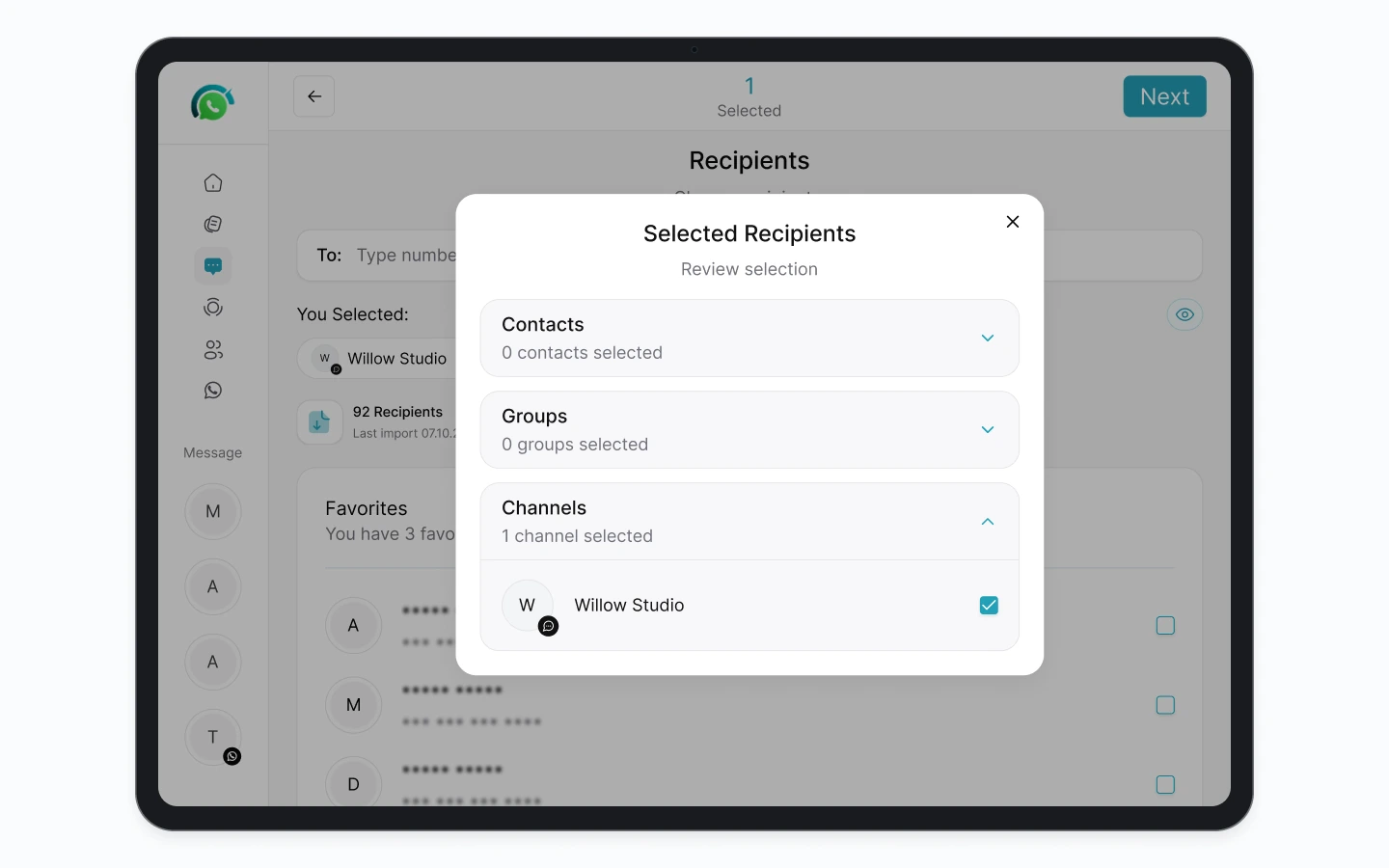
Illustrative selection review with zero contacts, zero groups and one Channel. -
3. Write and preview the post
Add a text block and write the announcement as it should appear in the Channel. For the community-session example, the text could be:
Today's community session starts at 18:00. Please have your questions ready.
Read the post from a follower's perspective. The start time should be clear without a private conversation for context. If the post includes a meeting link or supporting detail, review the actual wording and destination before continuing.
Keep the first schedule to the content you need. Check the complete message preview and remove any extra blocks left from preparation. The content you confirm will be used for the scheduled Channel post.
-
4. Set the date and time
Open Set Date & Time. For a single announcement, select Never under Repeat. Choose the future Date and Time for publication.
In the example, the publication time is 17:00 and the session starts at 18:00. The scheduled time controls when the post should appear; the time written inside the post describes the event. Check both so the announcement leaves the intended interval before the session.
Review the timezone displayed in your account before continuing. If it is wrong, correct it before creating the schedule, then check the chosen date and time again. Give the schedule a recognisable name so you can identify this announcement in Overview.
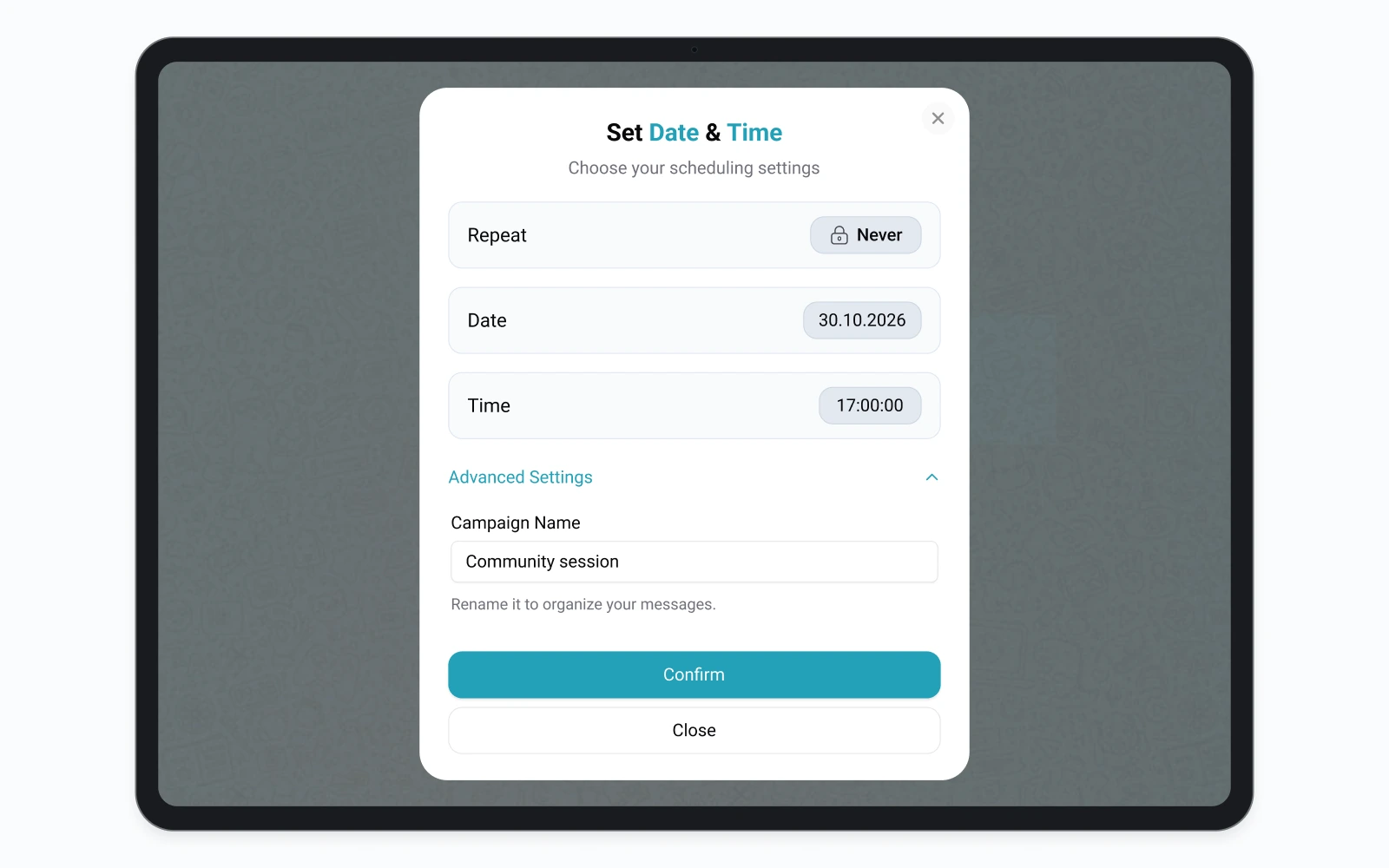
Illustrative one-time schedule for Community session. The displayed values are example settings. -
5. Review and confirm the schedule
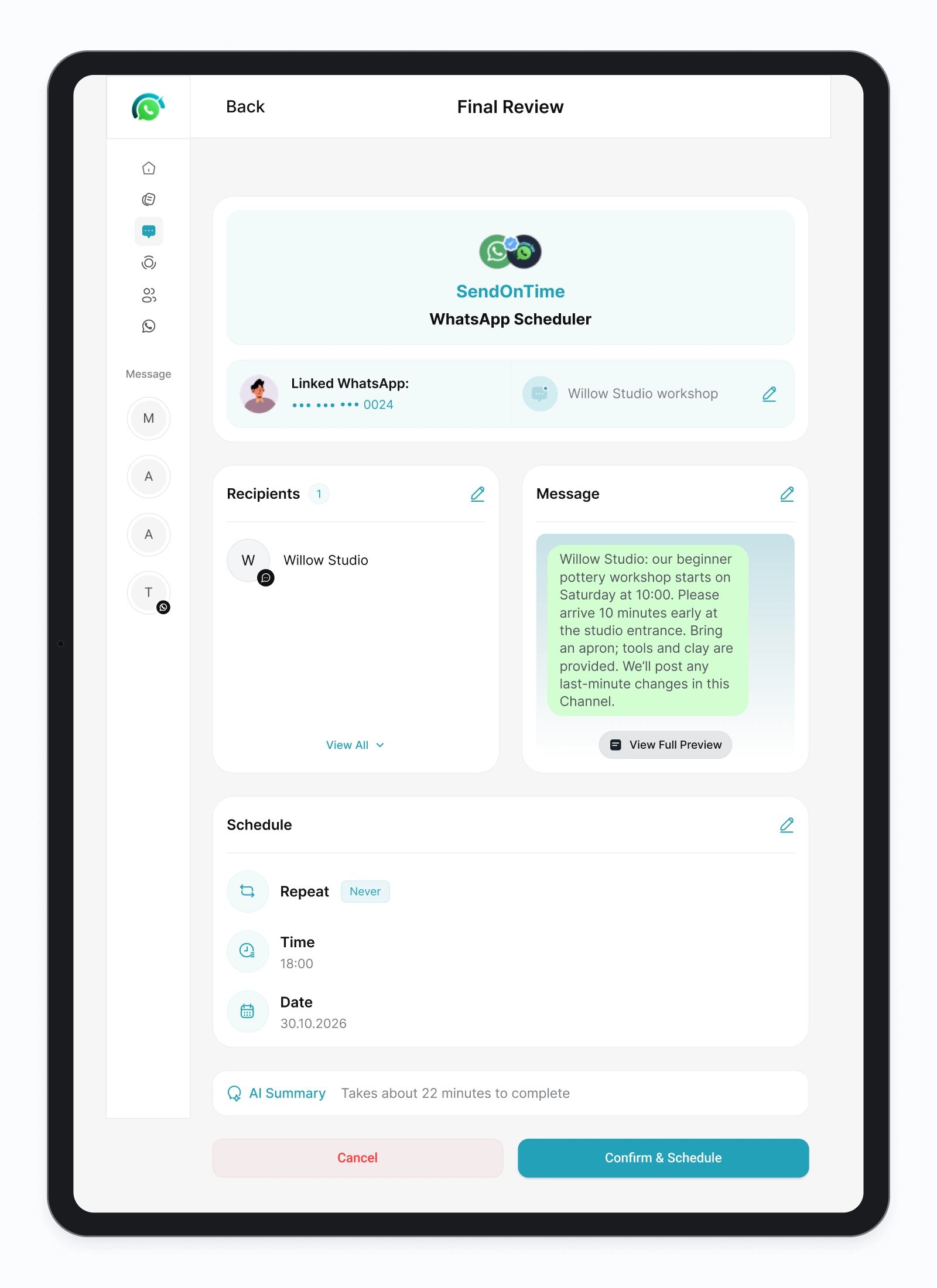
In Final Review, check the sender, destination, content and publication time together:
- Linked WhatsApp: shows the account that can publish in the Channel.
- Recipients contains the intended Channel, with no unintended destinations.
- Message shows the complete announcement and the correct session time.
- Schedule shows the publication date, 17:00 in this example, and a one-time setting.
Use View All or View Full Preview if you need a closer look at the selected destination or message. Correct anything that differs from your plan and review it again.
When the details are correct, select Confirm & Schedule. Check the creation confirmation and the saved record in Overview. If the result of saving is unclear, inspect Overview before submitting the same schedule again.
Verification
Check the saved schedule and published post
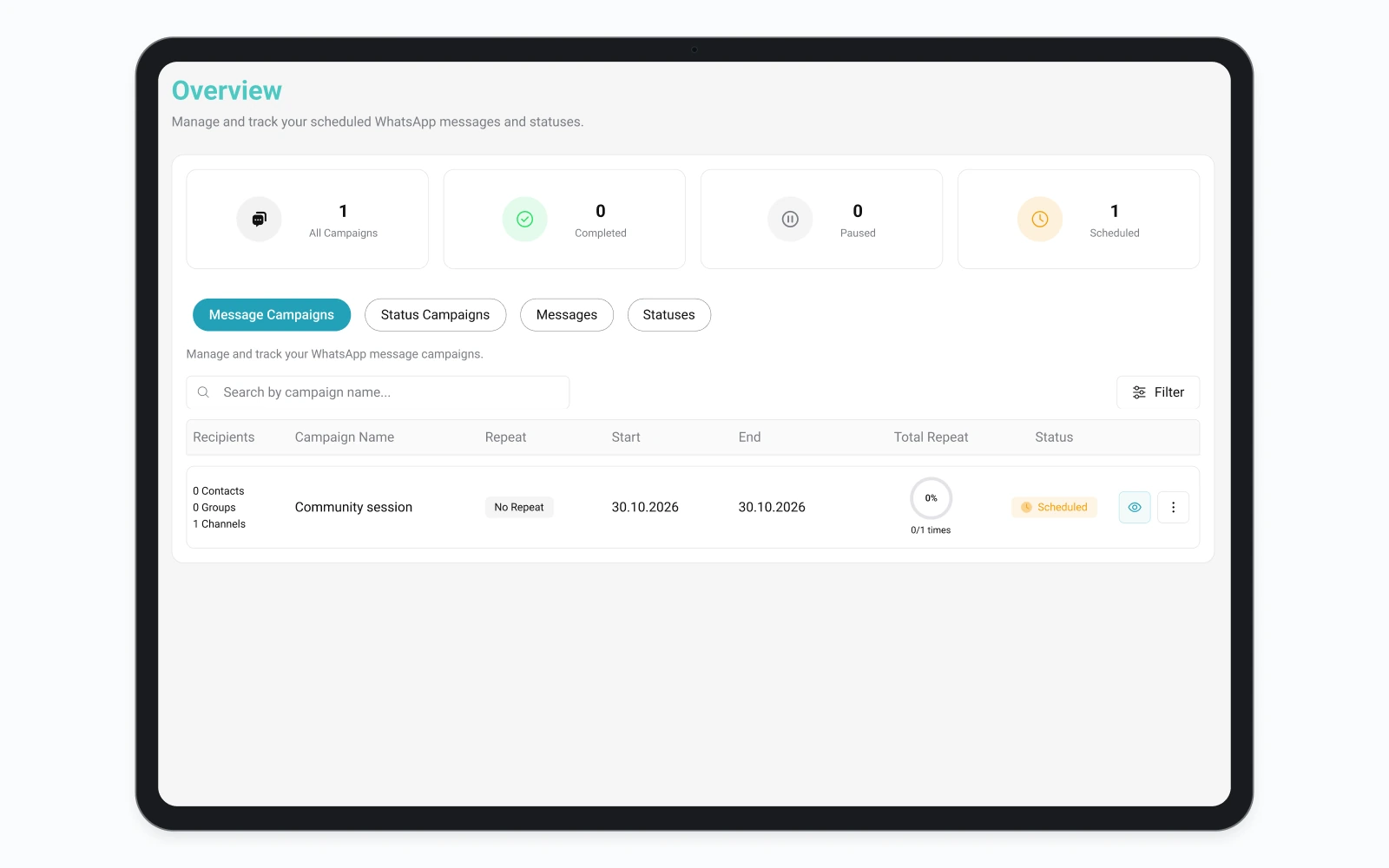
Open Overview and choose Message Campaign to find the saved schedule. Match its name, Channel recipient and dates to the announcement you prepared. A recognisable name helps, but also check the other details when names are similar.
Saving the campaign confirms that the schedule exists. Publication happens later. For a particular sending result, choose Messages and inspect the relevant record and delivery time. Campaign progress alone does not establish the outcome of every send.
After the scheduled time, open the intended Channel in WhatsApp and check for the announcement. Confirm that its content matches the reviewed post. If the post is missing, inspect the individual result before deciding what to do next. A successful scheduling confirmation should not be treated as evidence that the post has already appeared.
For the report fields and the distinction between campaign and individual records, see Message Campaign Reports.
Troubleshooting
If your channel is missing or a post fails
If you cannot select a Channel for a new schedule, check the linked WhatsApp account, its owner or admin permission, and your Enterprise access. Check that you are looking for the managed Channel rather than a Channel you only follow. For an existing schedule, inspect its saved details and sending result before diagnosing an access problem.
If a saved post does not appear when expected, inspect its individual record in Messages and check the linked WhatsApp connection. Confirm the intended publication date, time and timezone before treating the post as overdue.
When the original result is uncertain, keep the record for inspection and check the Channel before creating a replacement. Submitting the announcement again without those checks can create an unwanted duplicate. If you need support, provide the schedule name, intended time and timezone, and exact displayed error, with private details removed from screenshots.
Published:
Last updated: