
How to Schedule Recurring WhatsApp Status Updates
Quick answer
To repeat WhatsApp Status updates with SendOnTime, link your own WhatsApp account, prepare one Status item, and choose a daily, weekly, or monthly schedule. Set the intended publication period, review the expected dates and times, then check individual occurrences after they are due. Each campaign repeats one item; it does not rotate different posts.
A weekly planning reminder can be useful again each Monday while its wording stays accurate. A recurring campaign lets you plan those repeat publications as one series. Decide how often the item should appear, when the series should end, and how you will check each publication. The four-week example uses the same message throughout; different posts need separate planning.
Content fit
Choose What to Repeat
Start with one item you would be comfortable publishing again unchanged. A recurring reminder to plan the week can remain useful; a photograph announcing “today only” usually needs a much shorter lifetime. Read the text, any caption, and the image or video together. A date printed inside an image can expire even when its caption still looks current.
SendOnTime lets a Status campaign publish one item once or repeat that same item. Use text when the message stands on its own, or an image or video when the visual carries useful information. Image and video Status updates can include a caption. If you need a different post each week, plan those items separately rather than treating one recurring campaign as an alternating sequence.
WhatsApp Status updates disappear from view after 24 hours, and WhatsApp lets you choose who can see them. See how WhatsApp Status works. Repetition creates later publications of the item; it does not make one Status stay visible indefinitely. Review your intended audience before starting the series.
Repeat rhythm
Choose Daily, Weekly, or Monthly
Choose the interval according to how often the information becomes useful again. SendOnTime supports no repeat, daily, weekly, and monthly schedules. Use no repeat when the item belongs to one occasion. For a recurring series, decide its review point at the same time as its frequency.
| Repeat | Suitable when | Review before continuing |
|---|---|---|
| Daily | The same information is relevant each day. | Check that the wording and any offer remain valid. |
| Weekly | The item supports a weekly routine. | Confirm that the weekday and content still fit. |
| Monthly | The information is useful once each month. | Inspect the actual dates, especially around month-end. |
Repeating more often is not automatically more helpful. If the content changes before its next scheduled appearance, the schedule needs attention even if the interval itself is correct.
Schedule setup
Set Up a Recurring Status
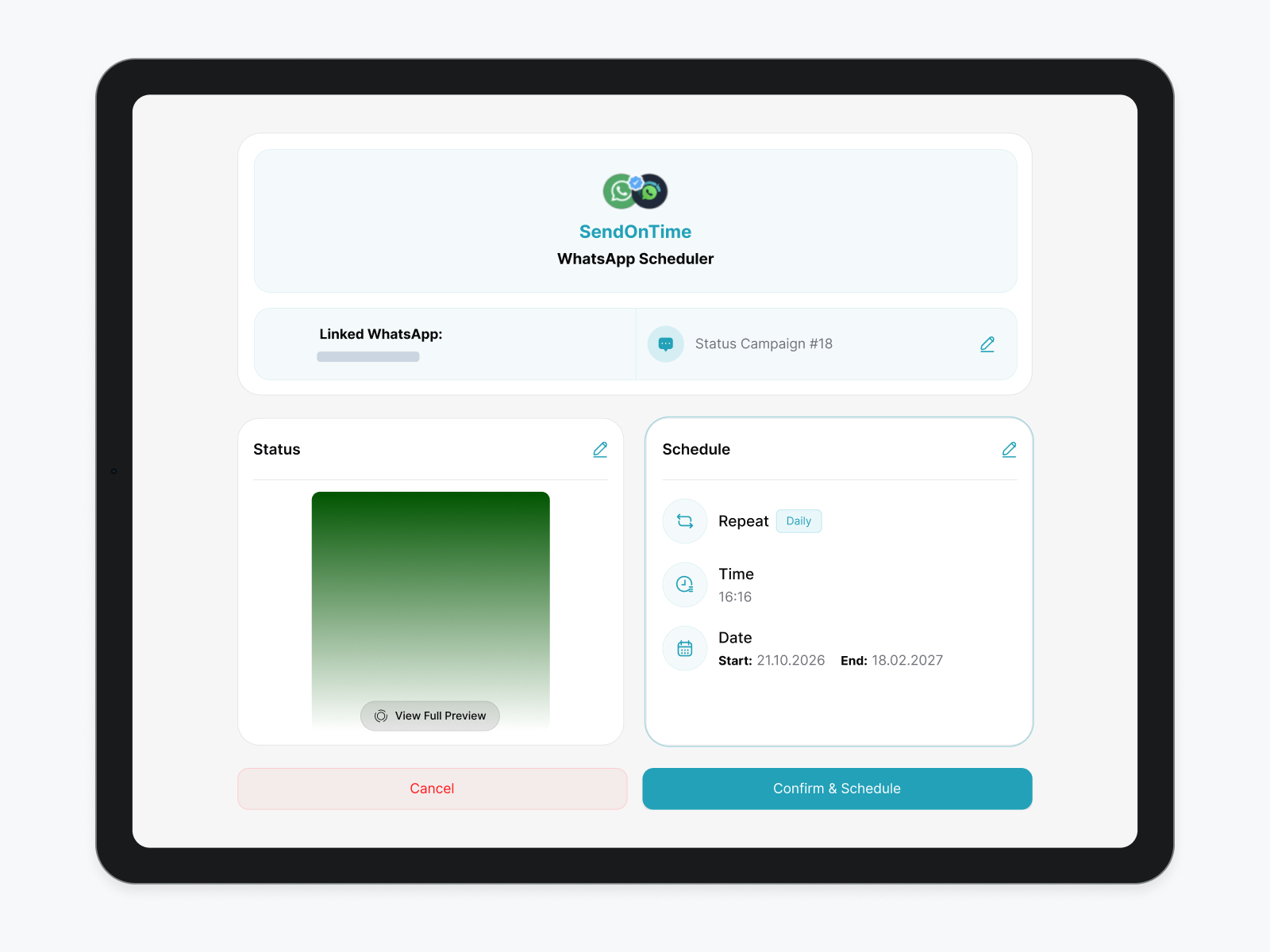
Begin with your own WhatsApp account linked to SendOnTime. In the Status scheduling workflow, prepare the single item that should repeat. If its wording refers to a specific day, make sure it remains accurate for every planned occurrence.
- Choose the text, image, or video and review any caption.
- Select the daily, weekly, or monthly repetition you need.
- Set the intended start, end, and publication time using the available scheduling controls.
- Compare the schedule with a written list of the occurrences you expect before confirming.
Plan Four Weekly Publications
Imagine repeating this text on four Mondays: “Monday planning check: choose your three priorities for the week.” The reminder applies each Monday, so its wording can stay the same. This is an illustrative planning exercise, not a report of a campaign tested in SendOnTime.
The intended schedule is 09:00 in the time zone you mean to use. Write down the dates before entering the series so you have something independent to compare with the displayed schedule.
| Occurrence | Intended date | Intended time | Content |
|---|---|---|---|
| 1 | 2026-11-02 | 09:00 | Same Monday planning text |
| 2 | 2026-11-09 | 09:00 | Same Monday planning text |
| 3 | 2026-11-16 | 09:00 | Same Monday planning text |
| 4 | 2026-11-23 | 09:00 | Same Monday planning text |
Choose a start and end window intended to include those four publications and exclude the following Monday, 2026-11-30. Do not infer whether an end-date boundary is inclusive: check the actual schedule the product displays. If it shows an extra occurrence or misses one, resolve the difference before confirming.
For your own campaign, replace the sample text, dates, and time with your real plan. Keep the four-column worksheet: occurrence, date, time, and content. It gives you a useful reference when you review the campaign later.
Review the Schedule Before Confirming
Read the selected content and schedule together. A correct weekly interval does not compensate for the wrong start date, publication time, or end point. Check that you are using the intended WhatsApp account and that the wording remains accurate through the final planned occurrence.
- Does the first date match the occasion you intended?
- Are all expected dates inside the start and end window?
- Does the displayed time match the time zone you intend to follow?
- Does the number of planned publications match your worksheet?
If the series crosses a clock change, or a monthly schedule uses a date absent from some months, inspect the resulting dates and times rather than assuming how the system handles them. If the displayed plan is unclear, resolve that uncertainty before activating the series.
Publication check
Check Each Publication
A created campaign is evidence that a schedule was recorded, not that every occurrence appeared in WhatsApp. Review the overall campaign and then the particular Status item you are checking.
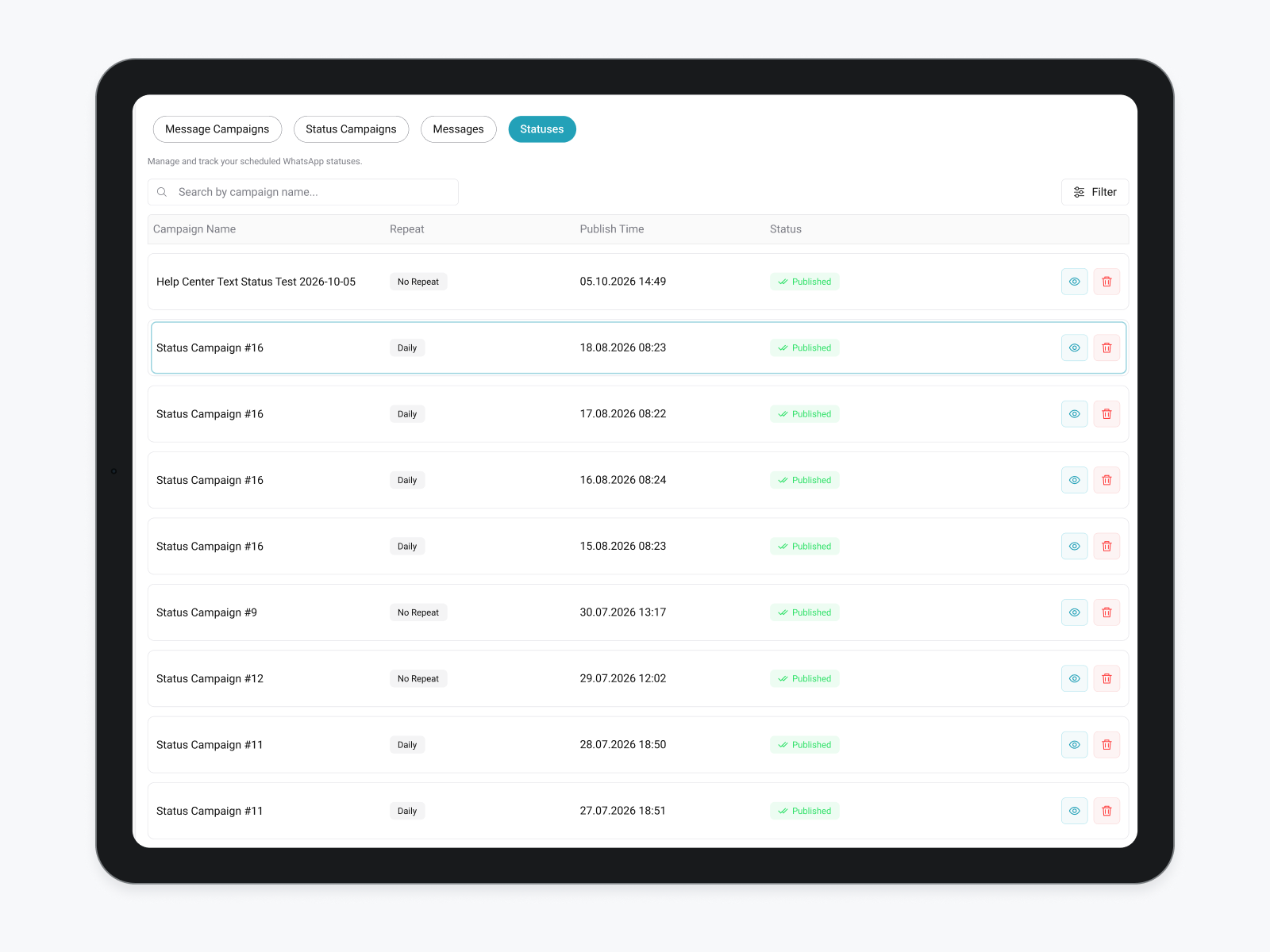
The Status Campaign report includes Campaign Name, Repeat, Start, End, Publish Time, Total Repeat, and Status. Use those fields to identify the series and compare its schedule with your intended plan. The single-Status report includes Campaign Name, Repeat, Publish Time, and Status. Use that record to inspect the occurrence due on a particular date and time.
- Match the campaign and occurrence to your worksheet.
- Read that occurrence’s actual status after its scheduled time.
- Check the linked WhatsApp account while the Status should still be visible, and compare the content with what you intended to publish.
- Record any mismatch before deciding whether a replacement publication is needed.
Do not treat Scheduled or Today’s Queue as Published. If you see Failed or an unclear result, inspect the available details before scheduling another copy. A campaign total does not establish that a particular occurrence succeeded, and a publication record is not a count of views.
Freshness review
Review Before Repeating Again
Decide who will review the series and when. Before the next cycle, reread the actual Status as well as checking whether the campaign remains active. An image, caption, link, or offer can become outdated even while the schedule remains active.
- Is the information still accurate for the next publication?
- Do any dates, prices, opening hours, or offers need attention?
- Does any included link still lead to the intended destination?
- Is the intended audience still appropriate?
- Should this same item appear again, or should the series end?
If you need to stop before the planned end, review the current campaign actions and their confirmation text. Check which future occurrences remain scheduled after any change. Do not assume that an action affects only one occurrence, removes the whole series, or deletes a Status already visible in WhatsApp.
Keep the original schedule and the results you checked together, so the next review starts from a clear record. For other tasks, browse the WhatsApp scheduling guides.
Published:
Last updated: